
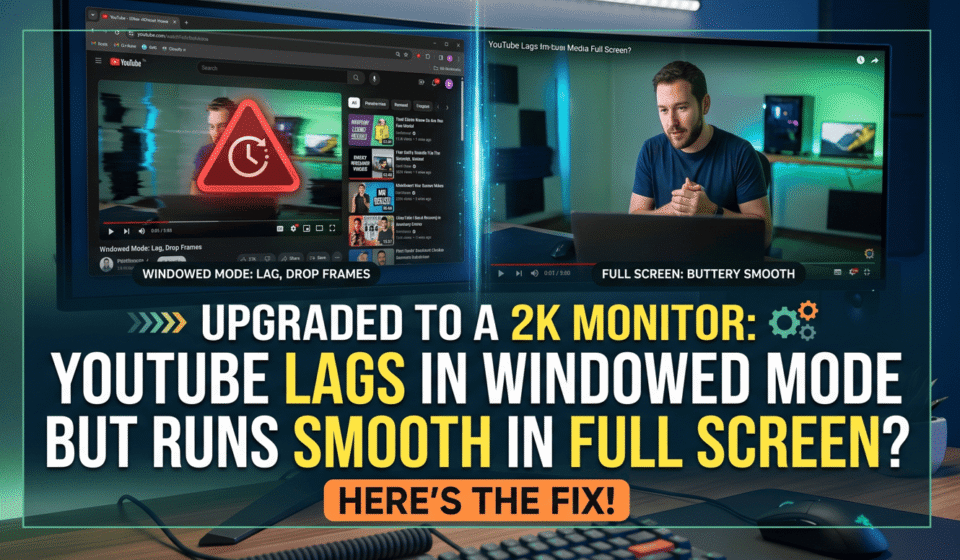
Upgraded to a 2K Monitor: YouTube Lags in Windowed Mode but Runs Smooth in Full Screen? Here’s the Fix!

So, you just upgraded your setup from a standard Full HD (1080p) monitor to a crisp, beautiful 2K (1440p) display. First impression? Absolutely glorious. Way more screen real estate for coding, and everything looks incredibly sharp.
But then, reality hits. You open up YouTube, wanting to put a video or some lo-fi music in the corner of your screen while you work. And boom—this incredibly annoying bug shows up: Whenever the video is in Default view or Theater mode, it stutters, lags, and drops frames like a PowerPoint slideshow. But the moment you hit Full Screen? It runs buttery smooth.
Wait, isn’t Full Screen supposed to be heavier on your system? After a bit of frustrating troubleshooting, I finally figured out why this weird bug happens and how to crush it. If you’re stuck in the same boat, here is the quick fix so you don’t waste your time digging through random forums.
Why on Earth Does This Happen?
After inspecting a few things, I realized the culprit isn’t your new monitor, nor is it a weak GPU. It’s simply your browser (Chrome, Edge, Brave, etc.) losing its mind while rendering at a higher resolution.
- In Full Screen: Windows and your GPU focus 100% of their power on processing just that single video stream. That’s why it’s smooth.
- In Windowed Mode: Your browser has to decode that 2K/4K video, push all those extra pixels on your new 2K monitor, and constantly render everything else around it—like the recommended videos sidebar, the scrolling comment section, and loading animations. This overwhelms the browser’s rendering engine or triggers a hardware conflict, causing it to lag out.
Step-by-Step Fixes (Method 1 Fixed It Instantly For Me)
Give these methods a shot one by one. One of them will definitely do the trick.
Method 1: Toggle “Hardware Acceleration” On/Off
90% of the time, this issue is just your browser and your graphics card driver having a communication breakdown.
- Open your browser Settings (Chrome/Edge).
- Type
hardwareinto the settings search bar to save time. - Look for Use graphics acceleration when available.
- If it’s currently ON: Turn it OFF.
- If it’s currently OFF: Turn it ON.
- Click Relaunch to restart your browser.
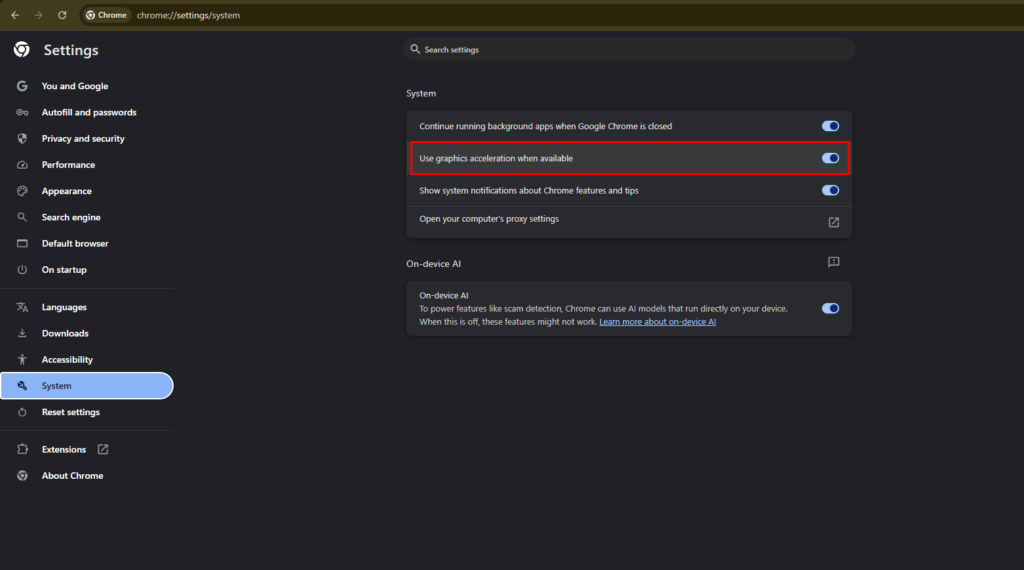
(For my setup, turning it ON and making sure my GPU drivers were fully updated fixed the issue completely).
Method 2: Change the Graphics Backend (ANGLE flag)
If Method 1 didn’t do jack, let’s dig a bit deeper into the browser’s internal engine.
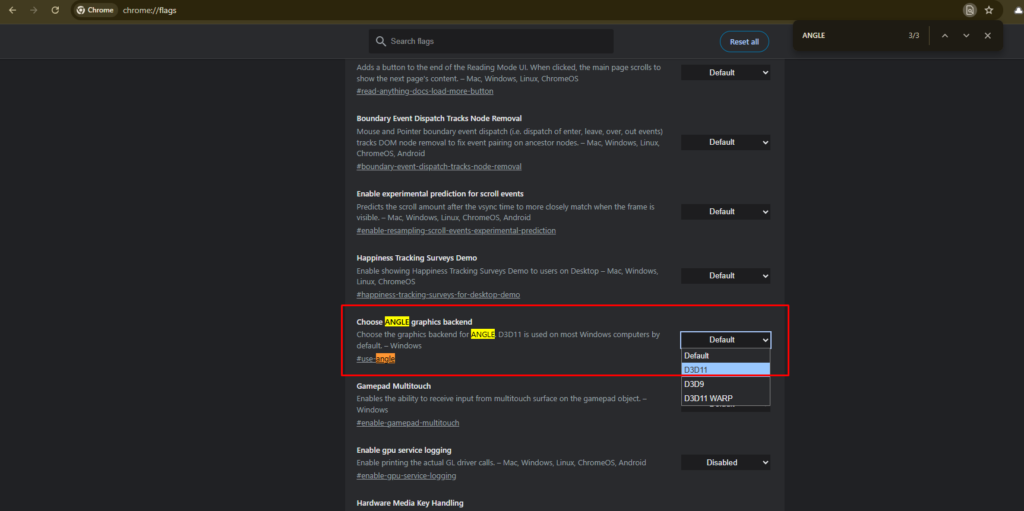
- In your address bar, type:
chrome://flags(oredge://flagsif you use Edge). - Search for ANGLE.
- Look for a setting named Choose ANGLE graphics backend. By default, it will be set to Default.
- Click the dropdown and switch it to D3D11 or OpenGL. Usually, selecting D3D11 on Windows stops the video stuttering while scrolling.
- Relaunch the browser and check the video again.
Wrap Up
Upgrading your monitor is supposed to be an upgrade to your happiness, so getting hit with these random software bugs can really ruin the vibe. Hopefully, this guide helped you fix the lag in a heartbeat.
Which method worked for you? Let me know in the comments below, or drop a line if you found an even better way to fix it!