

Skip to content
-
Explore tech, ideas, and the journey of building — welcome to Torin Digital Garden.
Torin Digital Garden Torin Digital Garden Torin Digital Garden

Tech, Coding & Build in Public

Torin Digital Garden Torin Digital Garden Torin Digital Garden

Tech, Coding & Build in Public

  • Home
  • The Lab
    • Code Snippets
    • Digital Assets
    • Downloads
  • Stories
    • Tech Journal
    • Human Connect
    • Inspirations
  • Showcase
    • Mobile Apps
    • Web Projects
  • About
  • Contact
  • Home
  • The Lab
    • Code Snippets
    • Digital Assets
    • Downloads
  • Stories
    • Tech Journal
    • Human Connect
    • Inspirations
  • Showcase
    • Mobile Apps
    • Web Projects
  • About
  • Contact
Close

Search

Trending Now:
5 Essential Tools Every Blogger Should Use Music Trends That Will Dominate This Year ChatGPT prompts – AI content & image creation trend Ghibli trend – viral anime-style visual trend
  • Github
  • X
  • Instagram
  • Facebook
  • Reddit
  • Telegram
Torin Digital Garden Torin Digital Garden Torin Digital Garden

Tech, Coding & Build in Public

Torin Digital Garden Torin Digital Garden Torin Digital Garden

Tech, Coding & Build in Public

  • Home
  • The Lab
    • Code Snippets
    • Digital Assets
    • Downloads
  • Stories
    • Tech Journal
    • Human Connect
    • Inspirations
  • Showcase
    • Mobile Apps
    • Web Projects
  • About
  • Contact
  • Home
  • The Lab
    • Code Snippets
    • Digital Assets
    • Downloads
  • Stories
    • Tech Journal
    • Human Connect
    • Inspirations
  • Showcase
    • Mobile Apps
    • Web Projects
  • About
  • Contact
Close

Search

Trending Now:
5 Essential Tools Every Blogger Should Use Music Trends That Will Dominate This Year ChatGPT prompts – AI content & image creation trend Ghibli trend – viral anime-style visual trend
  • Github
  • X
  • Instagram
  • Facebook
  • Reddit
  • Telegram
Home/Stories/How to Safely Update ASUS Prime B660M-K D4 BIOS (From 2212 to 3811)
StoriesTech Journal

How to Safely Update ASUS Prime B660M-K D4 BIOS (From 2212 to 3811)

By Torin Tran
April 27, 2026 4 Min Read
0
Updated April 27, 2026

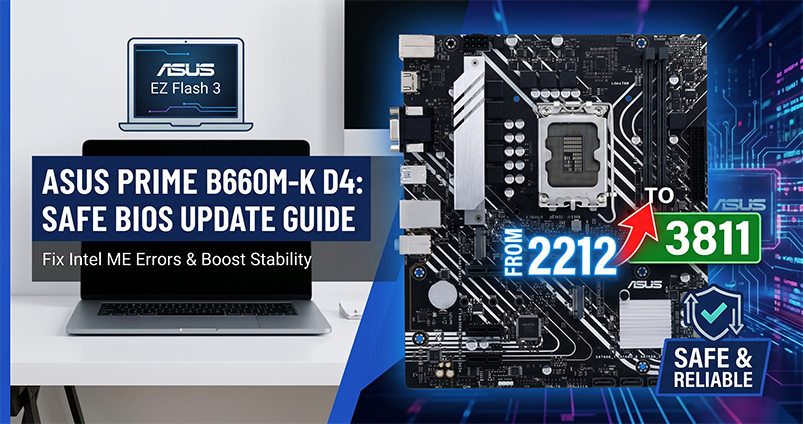
Hey guys, Torin Tran here. As developers, we usually spend our lives wrestling with IDEs, logic bugs, or server deployments. But sometimes, the “bug” exists at a much lower level: the hardware layer. I recently upgraded my “daily driver” motherboard—the ASUS PRIME B660M-K D4—from BIOS version 2212 to 3811. I’ve documented the process in a “dev-to-dev” style for anyone looking to do the same without bricking their machine.

Why Bother Updating the BIOS?
Checking Your Current “Environment”
The Safe Upgrade Path (Using EZ Flash 3)
Step 1: Download the “Artifacts”
Step 2: Prepare the “Hardware Key” (USB)USB Preparation Guide (Step-by-Step)
Step 3: The Flashing Process
4. Verification
Final Thoughts

Why Bother Updating the BIOS?

Honestly, the golden rule is: “If it ain’t broke, don’t fix it.” However, you should definitely consider an update if you are:

  • Upgrading to a newer CPU (like Intel 13th or 14th Gen).
  • Facing RAM compatibility issues (e.g., XMP profiles causing BSOD).
  • Patching critical hardware-level security vulnerabilities (Intel Microcode updates).
Checking Your Current “Environment”

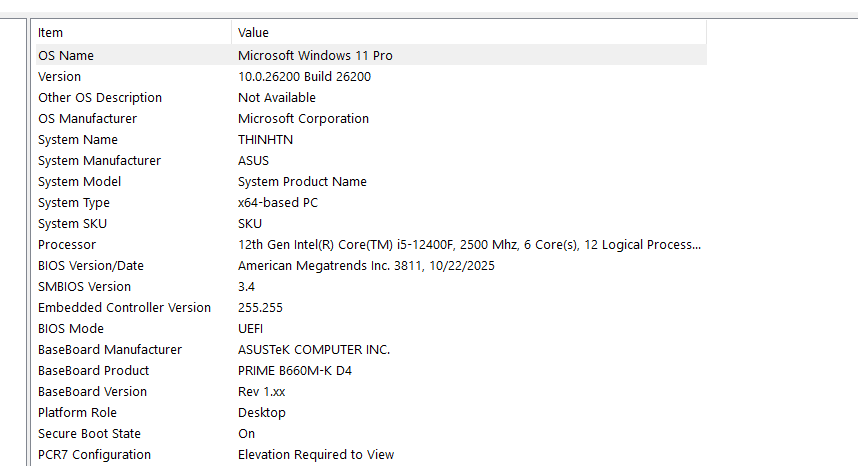
Before we dive in, you need to know exactly where you stand. No need to reboot into BIOS yet—just open CMD or PowerShell and run this command:

Get-CimInstance -ClassName Win32_BIOS

On my rig, the output was 2212. Our target today? Version 3811.

The Safe Upgrade Path (Using EZ Flash 3)

There are several ways to flash a BIOS, but I highly recommend doing it directly from the BIOS via USB. It’s much more stable and removes the risk of a Windows crash mid-process.

Step 1: Download the “Artifacts”

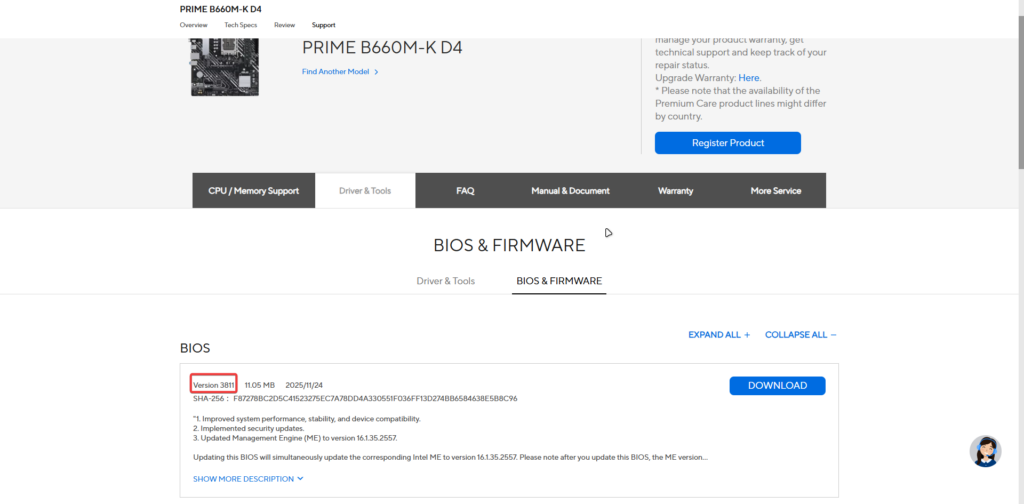
Head over to the official ASUS Support page. Search specifically for PRIME B660M-K D4. Double-check the model name—getting this wrong is a shortcut to a “bricked” motherboard. Download the latest stable version (in our case, 3811).
Step 2: Prepare the “Hardware Key” (USB)USB Preparation Guide (Step-by-Step)

1. Format USB to FAT32

BIOS environments typically cannot read NTFS or exFAT. You must use FAT32.

  • Plug in your USB (Ensure you back up data first).
  • Right-click the USB drive in File Explorer and select Format.
  • Under File System, select FAT32.
  • Click Start to wipe and reformat the drive.

2. Extract and Copy Files

  • Right-click the downloaded ASUS ZIP file and select Extract All.
  • Inside the folder, you will find two main files: the .CAP file (the BIOS itself) and BIOSRenamer.exe.
  • Copy both files directly to the root directory of your USB (do not put them in a folder).

3. Run BIOSRenamer

ASUS motherboards require a specific filename to recognize the update.

Result: The long .CAP filename will automatically change to a short, standardized name (e.g., PB660MKD.CAP).

Open your USB drive.

Double-click BIOSRenamer.exe.

A command window will pop up. Press any key to execute.

Step 3: The Flashing Process

📺 Official Video Reference by ASUS:

For a visual walkthrough of the BIOS interface and the flashing process, you can refer to the official ASUS support video here: How to use EZ Flash 3 to update BIOS

(This guide covers every click in detail—perfect if you want a visual confirmation before pulling the trigger).

This is the “point of no return.” Follow these steps carefully to ensure a smooth deployment.

1. Enter the BIOS Environment

  • Reboot your PC.
  • As soon as the screen lights up, tap the Del or F2 key repeatedly until you see the ASUS UEFI BIOS utility screen.

2. Switch to Advanced Mode

  • By default, you might land in “EZ Mode.”
  • Press F7 on your keyboard or click Advanced Mode at the bottom right to access the full suite of engineering tools.

3. Locate the Flash Utility

  • Navigate to the Tool tab using your mouse or arrow keys.
  • Select ASUS EZ Flash 3 Utility and press Enter.
  • It will ask how you want to update; select via Storage Devices (this refers to your prepared USB).

4. Execute the Update

  • You will see a file explorer interface. Use the Tab or Arrow keys to select your USB drive from the left-side list.
  • On the right side, find and select the renamed .CAP file (e.g., PB660MKD.CAP).
  • The Confirmation: A pop-up will ask: “Do you want to read this file?” — Click Yes.
  • A second pop-up will ask: “Do you really want to update BIOS?” — Click Yes to begin.

5. The “Hands-Off” Phase

  • A progress bar will appear. Do not touch anything. * Once finished, a message will say “Update successfully! System will be reset!”
  • Your PC will reboot automatically. It may turn on and off 1–2 times to initialize the new firmware—this is normal.

⚠️ MISSION CRITICAL: Never, ever power off your PC while the progress bar is moving. If you’re on a laptop, ensure it’s plugged into a stable power source. A power loss during this phase means a trip to the service center.

4. Verification

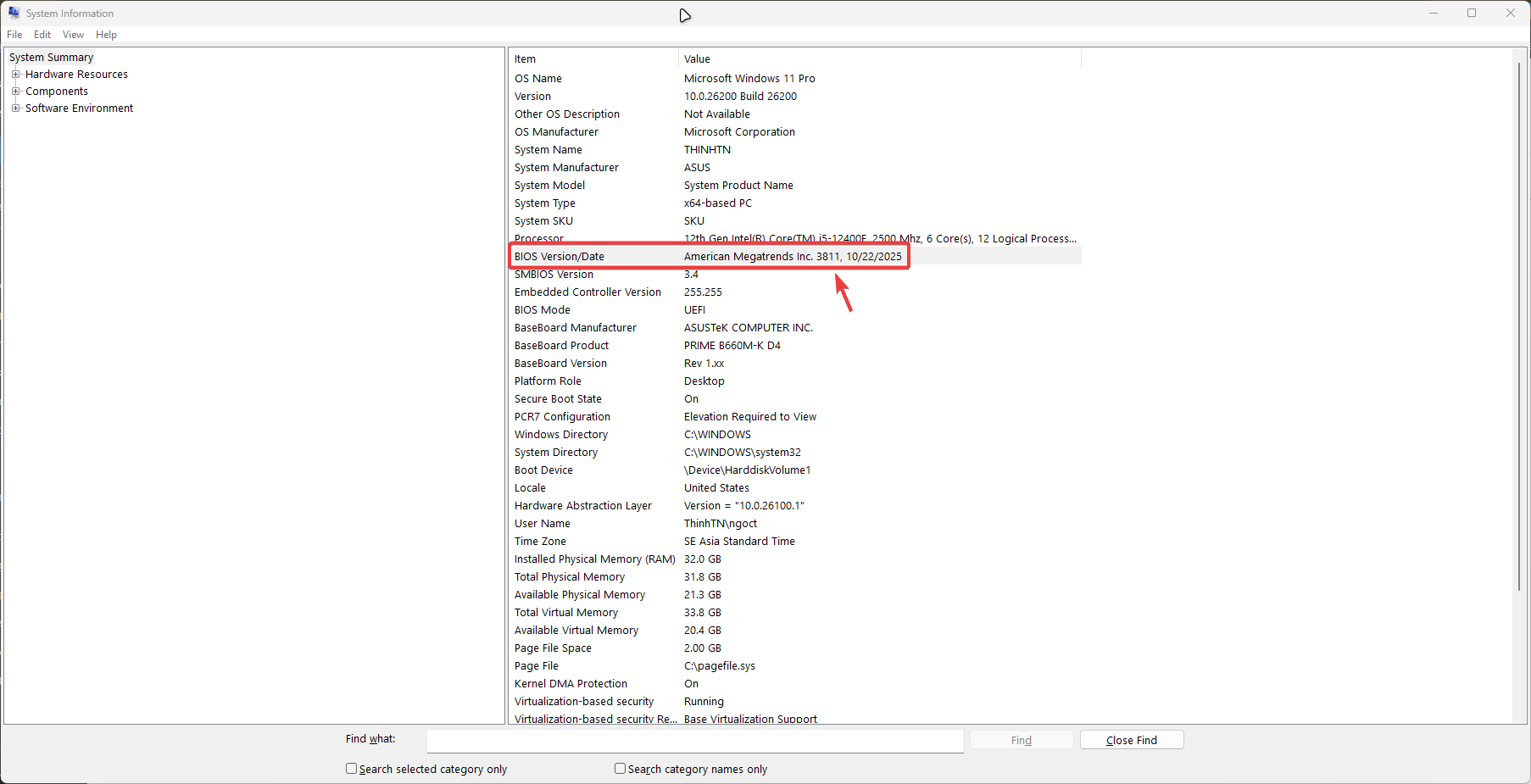
After the progress bar hits 100%, the PC will restart (it might do this a couple of times—don’t panic). Once you’re back in Windows, run msinfo32 again. If you see version 3811, congratulations—you’ve successfully deployed the update to your hardware!
Final Thoughts

Updating your BIOS isn’t scary if you follow the right protocol. Hopefully, this guide gives you the confidence to maintain your own “workhorse.” If you’re using other ASUS boards, the process is largely identical.


Author

Torin Tran

Follow Me
Other Articles
how to fix slow internet
Previous

How to fix slow internet — the night 300Mbps betrayed me

Next

Upgraded to a 2K Monitor: YouTube Lags in Windowed Mode but Runs Smooth in Full Screen? Here’s the Fix!

No Comment! Be the first one.

Leave a Reply Cancel reply

Your email address will not be published. Required fields are marked *

Recent Posts

  • Upgraded to a 2K Monitor: YouTube Lags in Windowed Mode but Runs Smooth in Full Screen? Here’s the Fix!
  • How to Safely Update ASUS Prime B660M-K D4 BIOS (From 2212 to 3811)
  • How to fix slow internet — the night 300Mbps betrayed me
  • My “Mission Impossible”: Using Redirection Regex to Rescue torintran.com
  • Keggo – A simple, private Kegel training app you’ll actually use

Recent Comments

  1. Anna on Why My Website Couldn’t Get Google AdSense Approved (And How I Finally Fixed It)
  2. PhuongPT on How to Fix “A Supported DirectX 8.0 Compatible Graphics Card Was Not Found” in Army Men: RTS
  3. KhangLB on How to Fix “A Supported DirectX 8.0 Compatible Graphics Card Was Not Found” in Army Men: RTS

Categories

  • Keggo
  • Mobile Apps
  • Showcase
  • Stories
  • Tech Journal
Hey, I’m Torin — I build, learn, and share thoughts on tech, business, and life.
  • X
  • Instagram
  • Facebook
  • YouTube
  • GitHub
Work Experience

MOBILE-ID

Backend Developer

2022-present

Bee Tech

Backend Developer

2022-2022

Open to collaborations
Get In Touch

Recent Posts

  • Upgraded to a 2K Monitor: YouTube Lags in Windowed Mode but Runs Smooth in Full Screen? Here’s the Fix!
    by Torin Tran
    May 21, 2026
  • Giao diện quản trị VPS Vietnix lần đầu dùng của Torin
    48 Hours of “Culture Shock”: My First Time Using VPS – From Noob to Digital Garden Owner
    by Torin Tran
    March 31, 2026
  • Example of DirectX 8 error in Army Men RTS
    How to Fix “A Supported DirectX 8.0 Compatible Graphics Card Was Not Found” in Army Men: RTS
    by Torin Tran
    April 1, 2026
  • Why My Website Couldn’t Get Google AdSense Approved (And How I Finally Fixed It)
    by Torin Tran
    April 3, 2026

Search...

A personal space dedicated to technology exploration, creative problem-solving, and sharing digital insights. Join me on the journey of continuous learning.

Latest Posts

  • Why My Website Couldn’t Get Google AdSense Approved (And How I Finally Fixed It)
    Getting approved by Google AdSense sounds simple on paper. But… Read more: Why My Website Couldn’t Get Google AdSense Approved (And How I Finally Fixed It)
  • Upgraded to a 2K Monitor: YouTube Lags in Windowed Mode but Runs Smooth in Full Screen? Here’s the Fix!
    So, you just upgraded your setup from a standard Full… Read more: Upgraded to a 2K Monitor: YouTube Lags in Windowed Mode but Runs Smooth in Full Screen? Here’s the Fix!
  • My “Mission Impossible”: Using Redirection Regex to Rescue torintran.com
    Redirection Regex is basically the “Undo” button every developer needs… Read more: My “Mission Impossible”: Using Redirection Regex to Rescue torintran.com

Pages

  • About
  • Contact
  • Privacy Policy

Contact

Phone

(+84) 348 026 021

Email

contact@torintran.com

Location

Ho Chi Minh City, Vietnam

Copyright 2026 — Torin Digital Garden. All rights reserved.